Everyday Git: Reviewing diffs locally
This post is part of Everyday Git, a series that explores Git features from the command line, with real-world usage in mind.
Introduction
Your coworker has just finished some chunk of work and they’ve chosen you to be their stamp of approval. Your first instinct may be to go to GitHub to review these changes. But, with the recent enshittification GitHub has been going through, you’re reluctant. You don’t want another reason to have to leave your safe place - the terminal.
This post explores more of a personal view into how I review Pull Requests within my terminal.
Bringing changes local
Before you can review your coworker’s changes, you need to download them to your machine. In Git terminology, their branch exists on a “remote” server (like GitHub), and you need to fetch it to your “local” machine.
By default, when you clone a repository, Git automatically sets up a connection to the server you cloned from. This connection is called “origin” - think of it as a bookmark to the main repository. You can see where it points by looking at .git/config:
[remote "origin"]
    # `url` will change format depending on whether the
    # repo was cloned via HTTPS or SSH
	url = git@github.com:<user>/<repo> # SSH
    url = https://github.com/<user>/<repo> # HTTPS
	fetch = +refs/heads/*:refs/remotes/origin/*
note:
remotecan be called anything however “origin” is the usual naming convention used.
Once the remote is configured, the latest changes can be pulled using git fetch.
$ git fetch <remote>
This will update .git/FETCH_HEAD to point to the latest commits from the remote branches that were fetched. .git/HEAD holds a reference to the locally fetched commit for the current branch.
$ git branch
* main

# see the structure for .git (ommitting irrelevant files)
$ tree .git
.git
├── config
├── FETCH_HEAD
├── HEAD
└── refs
    ├── heads
    │   └── main
    └── remotes
        └── origin
            ├── HEAD
            └── main

6 directories, 14 files

# holds a reference to a file with the commit hash for the current HEAD
$ cat .git/HEAD
ref: refs/heads/main

# open the reference to find the commit hash
$ cat .git/refs/heads/main
91f28563e05e98721e7fcaccc8d5f9b0dd48faf4

# currently, the HEAD and FETCH_HEAD are the same
$ cat .git/FETCH_HEAD
91f28563e05e98721e7fcaccc8d5f9b0dd48faf4		branch 'main' of github.com:<user>/<repo>

$ git fetch origin
From github.com:<user>/<repo>
   91f2856..f489fda  main       -> origin/main

# fetch head is now updated and does not match HEAD (there were changes in the remote)
$ cat .git/FETCH_HEAD
f489fda8ea6d32441af47cc88718a1abb91125e6		branch 'main' of github.com:<user>/<repo>
Fetching from forks
The previous instructions made the assumption that the branch being fetched was created on the current repository. What happens then if the changes are coming from a fork external to the repo?
For quick, one-time reviews, fetching the changes via direct url and creating a local branch with said changes is usually easiest.
$ git fetch git@github.com:<user>/<repo> <remote-branch>:<local-branch> # SSH
$ git fetch https://github.com/<user>/<repo> <remote-branch>:<local-branch> # HTTPS
note:
<local-branch>is a locally created branch and can thus be named whatever you desire.
If the user is a regular contributor however, it may be more convenient to setup a dedicated remote.
$ git remote add <user> git@github.com:<user>/<repo> # SSH
$ git remote add <user> https://github.com/<user>/<repo> # HTTPS
$ git fetch <user>
Viewing simple diffs
With the latest contents of their branch fetched, we can now start to inspect them.
The most basic form of this is via git diff.
$ git diff origin/<branch>
diff --git a/foo.txt b/foo.txt
index 257cc56..bbbdac3 100644
--- a/foo.txt
+++ b/foo.txt
@@ -1 +1,4 @@
foo
+ foo
+ bar
+ foo
note: notice we prefixed the desired branch with
origin/. we must specify to Git that we are checking the remote version of the branch.
The above command will compare the current HEAD with the changes in origin/<branch>. Usually however, you’ll want to compare the changes with what’s currently in main.
An aside on dot notation
There are two different ways to compare a diff between revisions:
- Two dot syntax:
git diff <a>..<b>/git diff <a> <b> - Three dot syntax:
git diff <a>...<b>/git diff $(git merge-base <a> <b>) <b>
The two dot syntax (..) compares the diff between the tip (HEAD) commits of branch <a> and <b>. Whereas the three dot syntax (...) compares the diff from the common ancestor of branch <a> to the tip of branch <b>, e.g. changes made in <a> will not be diffed.
To illustrate this, let’s create a new branch dev based off main and add a new function to one of our files.
$ ls
README  index.js

$ cat README
# diff changes

hello world

$ cat index.js
function main() {
    console.log('from main');
}

$ git checkout dev
$ echo "function hello() { console.log('hi'); }" >> index.js
$ cat index.js
function main() {
    console.log('from main');
}
function hello() { console.log('hi'); }
Let’s jump back to main and remove a line from the README.
$ git checkout main
$ cat README
# diff changes

hello world

$ vim README # modified file
$ cat README
# diff changes
Let’s now compare the outputs between the two dot and three dot notation.
$ git diff main dev
diff --git a/README b/README
index 388532d..b50217b 100644
--- a/README
+++ b/README
@@ -1 +1,3 @@
 # diff changes
+
+hello world
diff --git a/index.js b/index.js
index 63fb705..b57bda8 100644
--- a/index.js
+++ b/index.js
@@ -1,3 +1,4 @@
 function main() {
   console.log('from main');
 }
+function hello() { console.log('hi'); }

$ git diff main...dev
diff --git a/index.js b/index.js
index fbfa11f..9864ec8 100644
--- a/index.js
+++ b/index.js
@@ -1,3 +1,4 @@
 function main() {
   console.log('from main');
 }
+function hello() { console.log('hi'); }
What you may have noticed is the first (two dot notation) has an additional change. The line we removed in main seems to have been explicitly added back in dev even though we didn’t actually make that change. This is because when directly comparing the snapshots, it looks to main as if dev did add it.
What you usually want however is what dev has changed since the branches diverged. That is what the second (three dot notation) shows.
Back to the diff
git diff is great if you have a series of smaller changes that need to be checked. It usually pipes itself into some form of less, giving you a large list of all your changes for you to scroll through.
For larger PRs however, this view can be overwhelming. It’s very hard to parse the surrounding context of what’s changed. This can of course be changed via the -U<n>, --unified=<n> flag which shows <n> additional lines of context. This unfortunately doesn’t usually solve the problem for larger diffs and can most often make things harder to parse as there’s so much more output to sift through.
For more complex changes, we can use git difftool.
Viewing complex diffs
git difftool at its core is a frontend to git diff. It allows you to view and edit diffs using common diff tools. This therefore provides the opportunity to open the diff-view in a local tool/IDE of your choice.
For example, the following command would produce an output like such.
$ git difftool <remote>/<branch> --tool=vimdiff
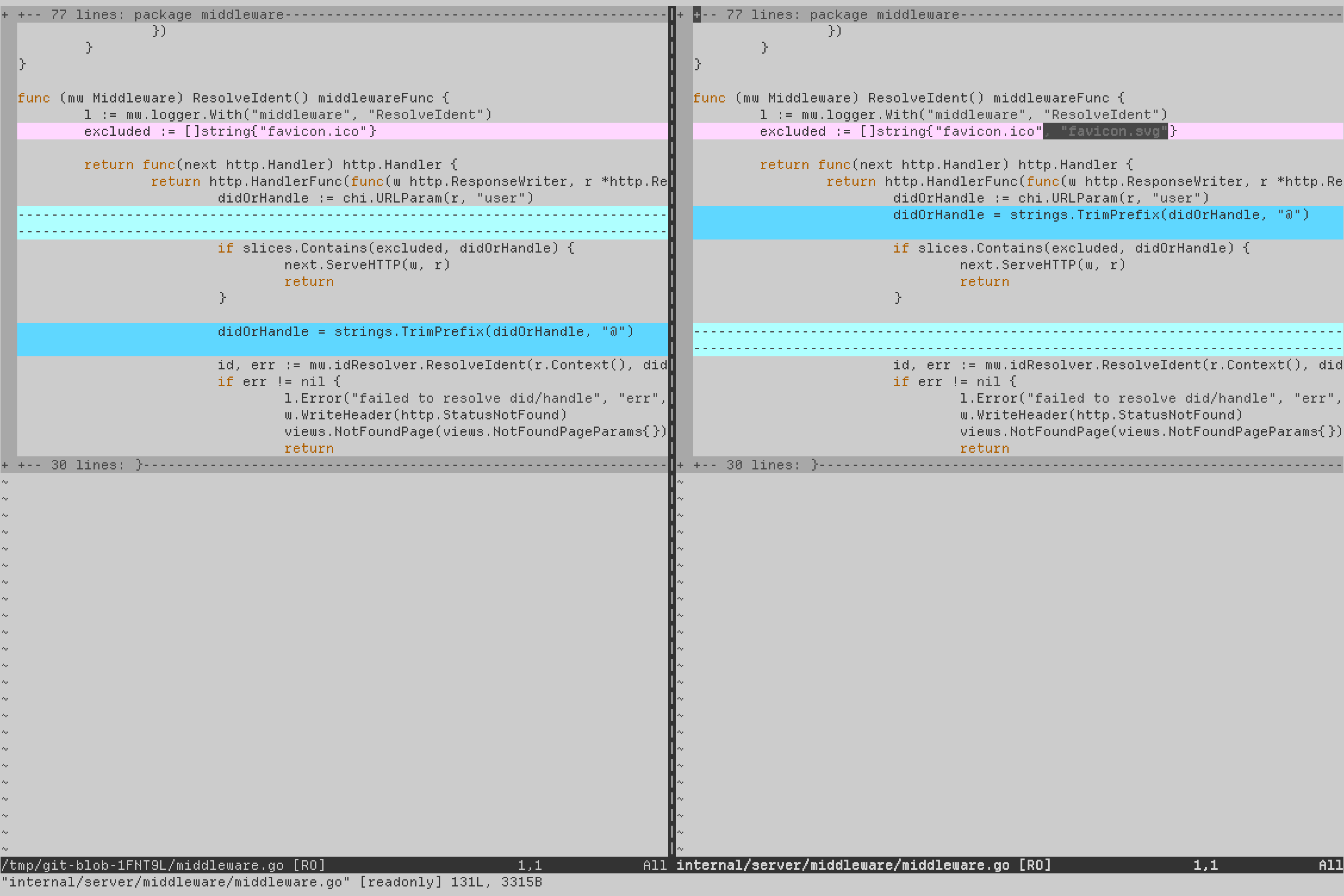
Instead of opening a long list of every change, git difftool opens the desired diff tool per hunk. It’s much easier then to keep the surrounding context of the change in mind when reviewing.
Another benefit of git difftool is its ability to open using your desired IDE. This not only gives you intellisense over your changes but even allows for direct editing of changes.
Using different tools
As seen in the previous example, --tool was directly provided. This however, does not need to be. By default, git difftool will check the value of diff.tool in your Git configuration. If that’s not set, it will try to select a “suitable default”. You can change these defaults via git config.
# set the default diff tool
$ git config --global diff.tool vimdiff

# for tools that need additional config (like vscode)
$ git config --global diff.tool vscode
$ git config --global difftool.vscode.cmd 'code --wait --diff $LOCAL $REMOTE'
or you can manually configure this via your Git configuration.
[diff]
    tool = vimdiff
[difftool]
    prompt = false
[difftool "vscode"]
    cmd = code --wait --diff $LOCAL $REMOTE
git difftool --tool-help can be used to print a list of all available and valid tools that can be used.
$ git difftool --tool-help
'git difftool --tool=<tool>' may be set to one of the following:
                araxis           Use Araxis Merge (requires a graphical session)
                nvimdiff         Use Neovim
                vimdiff          Use Vim

The following tools are valid, but not currently available:
                bc               Use Beyond Compare (requires a graphical session)
                bc3              Use Beyond Compare (requires a graphical session)
                bc4              Use Beyond Compare (requires a graphical session)
                codecompare      Use Code Compare (requires a graphical session)
                deltawalker      Use DeltaWalker (requires a graphical session)
                diffmerge        Use DiffMerge (requires a graphical session)
                diffuse          Use Diffuse (requires a graphical session)
                ecmerge          Use ECMerge (requires a graphical session)
                emerge           Use Emacs' Emerge
                examdiff         Use ExamDiff Pro (requires a graphical session)
                guiffy           Use Guiffy's Diff Tool (requires a graphical session)
                gvimdiff         Use gVim (requires a graphical session)
                kdiff3           Use KDiff3 (requires a graphical session)
                kompare          Use Kompare (requires a graphical session)
                meld             Use Meld (requires a graphical session)
                opendiff         Use FileMerge (requires a graphical session)
                smerge           Use Sublime Merge (requires a graphical session)
                tkdiff           Use TkDiff (requires a graphical session)
                vscode           Use Visual Studio Code (requires a graphical session)
                winmerge         Use WinMerge (requires a graphical session)
                xxdiff           Use xxdiff (requires a graphical session)

Some of the tools listed above only work in a windowed
environment. If run in a terminal-only session, they will fail.
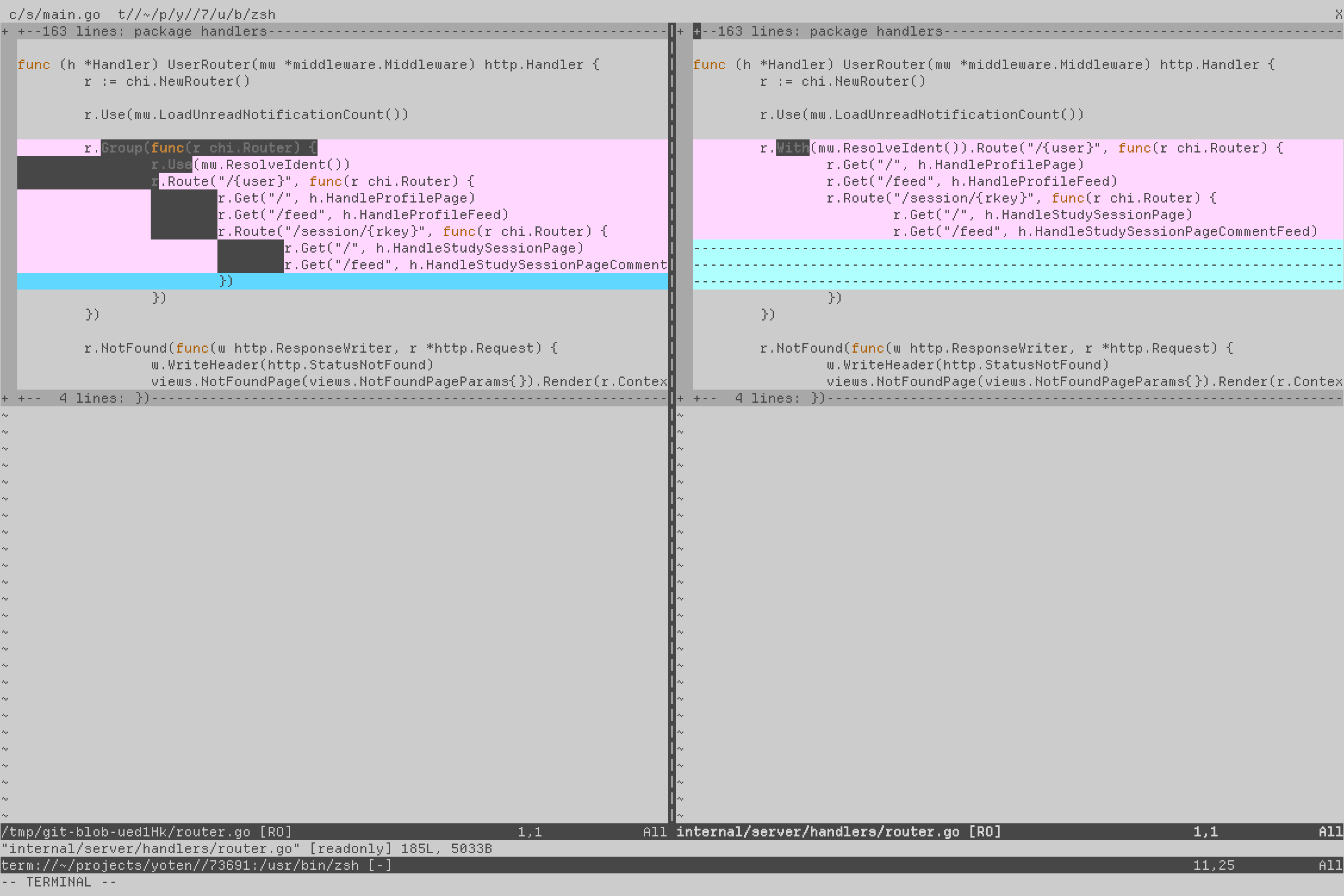
As seen in the above output, some of these tools open graphical applications while others are terminal based. One workflow I tend to like is opening a terminal buffer within Neovim and running git difftool --tool=vimdiff over my changes there to ensure my ducks are in a row before committing.
Conclusion
While I don’t think every review can occur from the terminal, it is nice to know there are other options available. One limitation I’m unsure of a fix for is leaving review comments from the terminal - this would differ from platform to platform. GitHub for example, allows you to create comments but not on specific lines of code - gh pr comment.
Thanks for reading, - Brook ❤
Thanks to Sam Wagner for reviewing the draft of this article